---
title: "Insert Dynamic Offer Text in the Popup"
description: "Use Dynamic Text to pull an offer's title, subtitle, and quantity into your popup copy so it stays accurate as the campaign runs."
---
Instead of typing your offer details into the popup by hand, you can insert **Dynamic Text** that pulls them straight from the offer — the title, subtitle, and quantity. Because the text reads from the campaign's offer data, the copy stays correct even if you change the offer later, and it can reference a specific tier (for example, "the first 50 to buy").
## Insert an Offer Detail
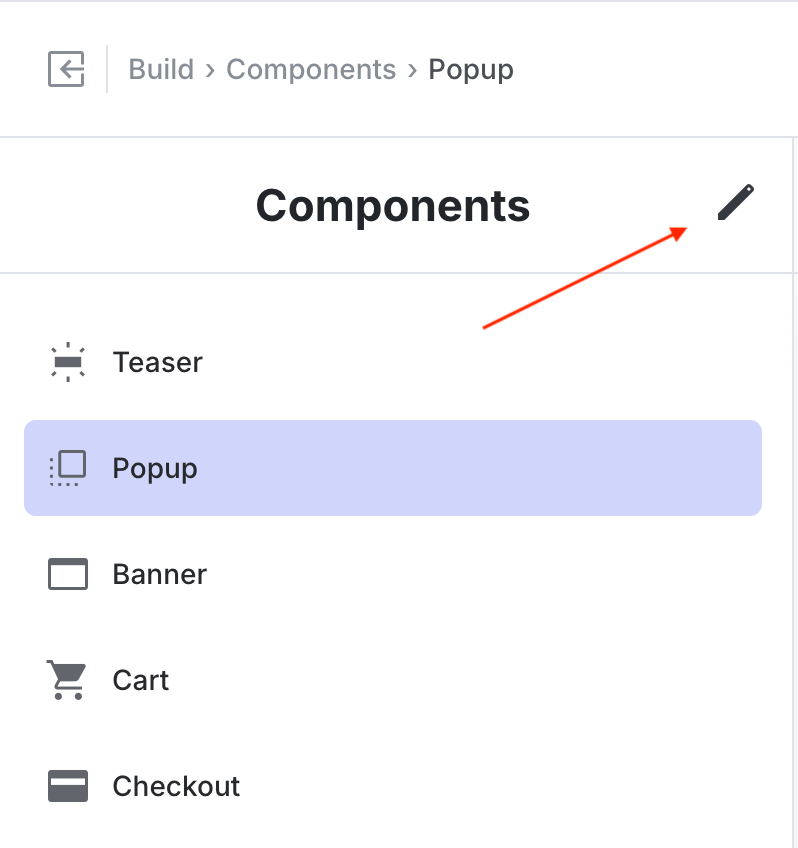
1. In the Design Editor, go to **Build > Components > Popup**, then click the **Edit** icon (the pencil).
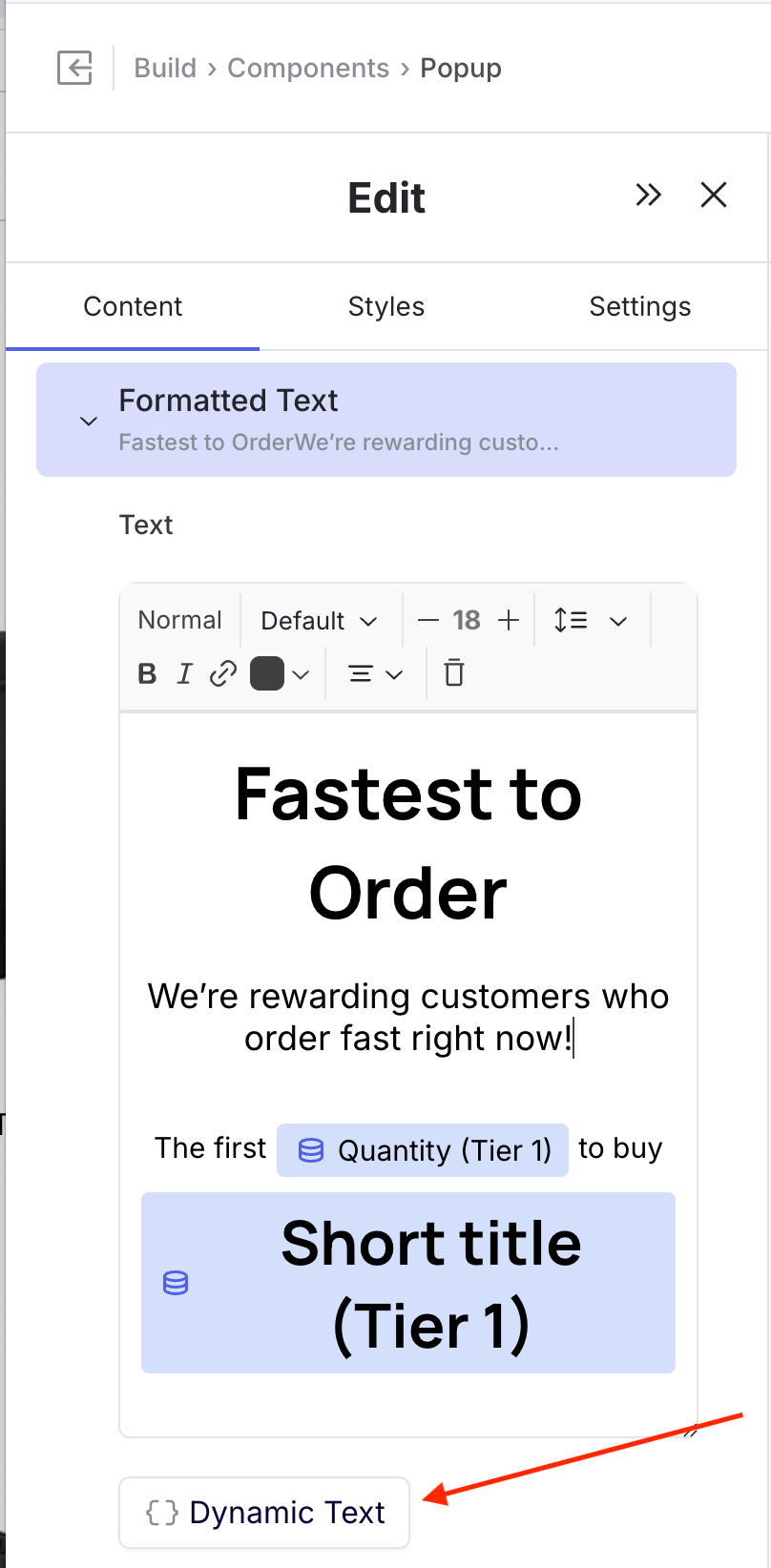
2. Click the **Formatted Text** block you want to edit to open the rich text editor.
3. Place your cursor where you want the dynamic value to appear, then click **Dynamic Text** at the bottom of the panel.
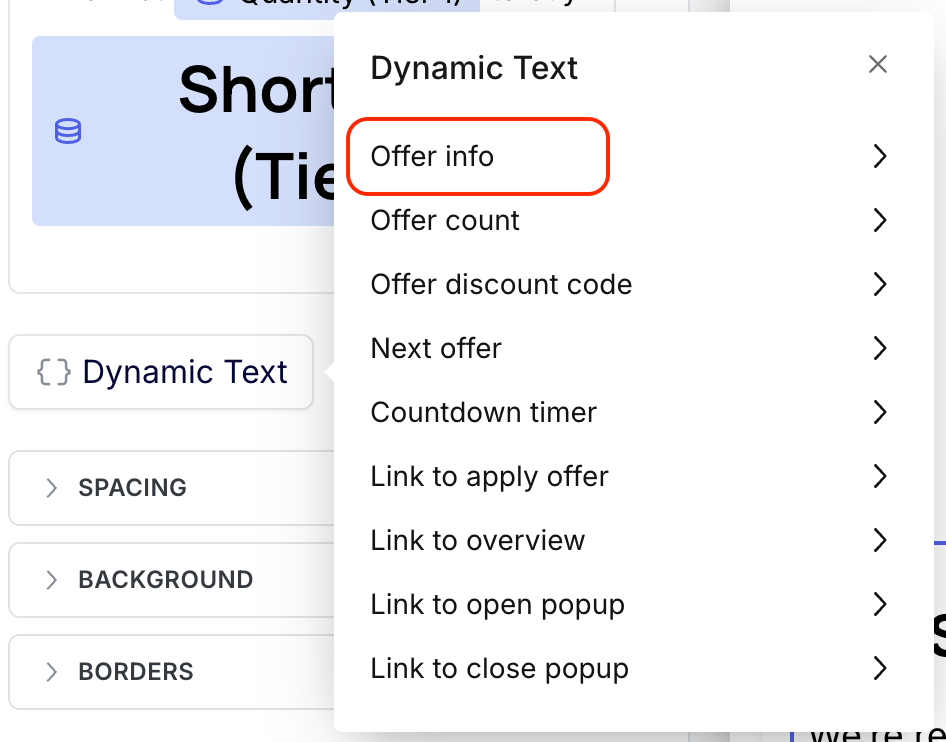
4. Choose **Offer info** from the Dynamic Text menu.
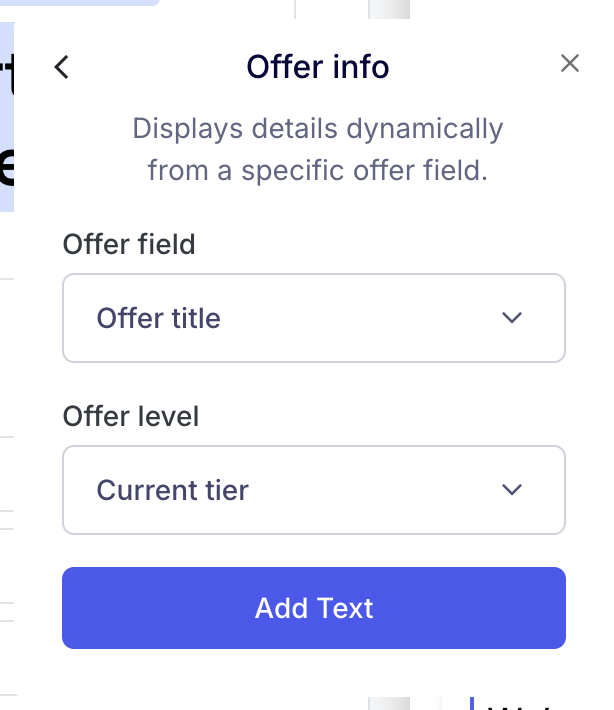
5. Pick the **Offer field** you want to display:
- **Full (long) title**
- **Short title**
- **Subtitle**
- **Quantity** — the total number of offers in the selected tier
6. Set the **Offer level** to control which tier the value comes from:
- **Current tier** — shows the value for whichever tier is active at the moment a shopper sees the popup
- **A specific tier** (e.g. `1`) — always shows that tier's value
7. Click **Add Text** to insert the token, then **Save**.
## Example: "The first 50 to buy"
To show how many total offers are in the first tier:
- **Offer field:** Quantity
- **Offer level:** 1
Surround the token with your own copy in the editor — for example, type `The first`, insert the Quantity token, then type `to buy` — and the popup renders **"The first 50 to buy"** automatically.
## Showing Claimed or Remaining Counts Instead
The **Offer info > Quantity** field shows the *total* number of offers in a tier. If you want a live count of how many have been **claimed** or how many are **still available (left)**, use the **Offer count** dynamic text type instead of Offer info. Offer count updates in real time as shoppers claim the offer, which is what drives the scarcity messaging.
## Automatically Pluralize the Reward Word
When a count drops to 1, hardcoded copy reads awkwardly — "1 **offers** left" instead of "1 offer left." Let the **Offer count** tag handle the singular/plural switch for you instead of typing the word yourself.
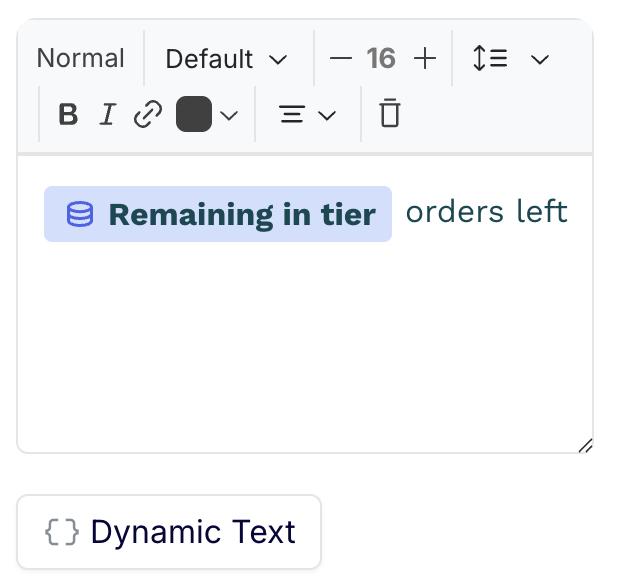
The common mistake is to insert the count tag and then type the word after it. Here, "orders" is typed as static text, so it always reads "orders" even when the count is 1:
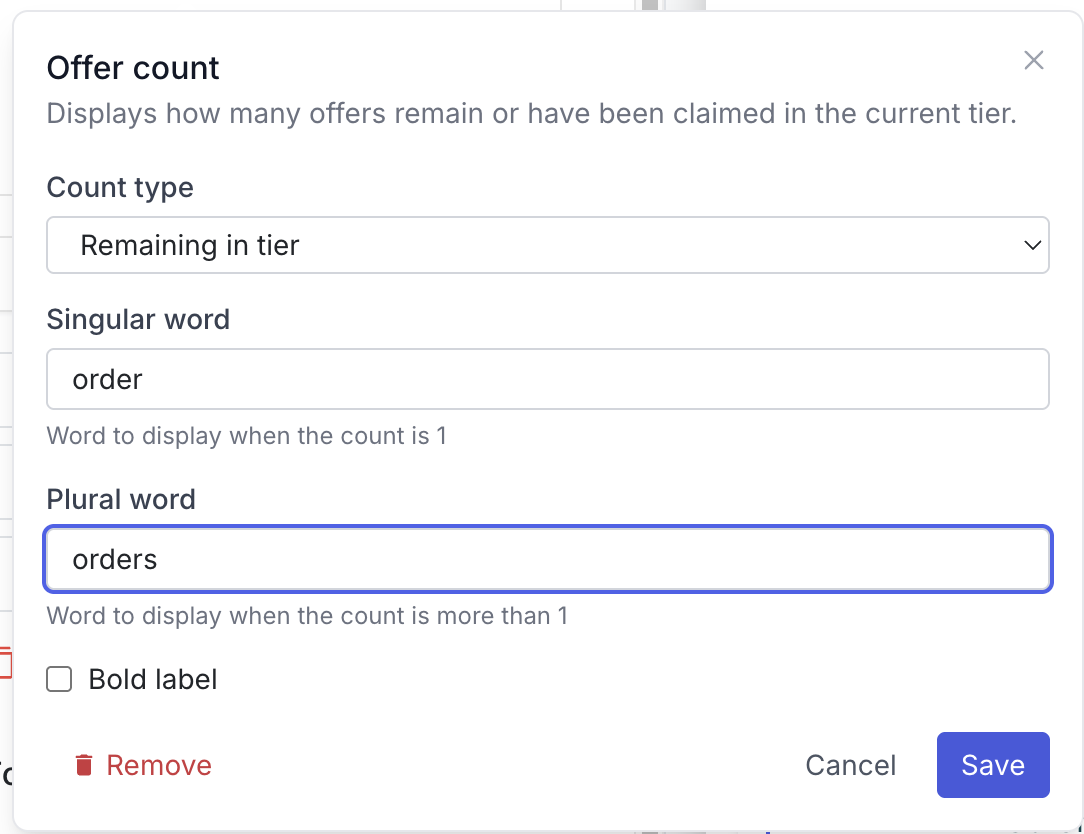
Instead, define the word inside the tag:
1. Insert a **Dynamic Text > Offer count** tag and set the **Count type** (for example, **Remaining in tier**).
2. Fill in the **Singular word** (shown when the count is 1, e.g. `order`) and the **Plural word** (shown when the count is more than 1, e.g. `orders`).
3. Click **Save**, then **delete the static word** you typed in the text field — the tag now supplies the correctly pluralized word.
The copy now reads "1 order left" or "12 orders left" automatically as the count changes. This works for any reward word — offer, reward, discount, order, and so on.
## Related Tutorials
- [Configuring Offers](/shopify/tutorials/offer-configuration) — Set the products, tiers, and quantities the dynamic text reads from
- [Position and Layer the Teaser and Popup](/shopify/tutorials/positioning-teaser-and-popup)
- [Campaign Visibility Controls](/shopify/tutorials/visibility-controls)
 2. Click the **Formatted Text** block you want to edit to open the rich text editor.
3. Place your cursor where you want the dynamic value to appear, then click **Dynamic Text** at the bottom of the panel.
2. Click the **Formatted Text** block you want to edit to open the rich text editor.
3. Place your cursor where you want the dynamic value to appear, then click **Dynamic Text** at the bottom of the panel.
 4. Choose **Offer info** from the Dynamic Text menu.
 5. Pick the **Offer field** you want to display:
- **Full (long) title**
- **Short title**
- **Subtitle**
- **Quantity** — the total number of offers in the selected tier
6. Set the **Offer level** to control which tier the value comes from:
- **Current tier** — shows the value for whichever tier is active at the moment a shopper sees the popup
- **A specific tier** (e.g. `1`) — always shows that tier's value
7. Click **Add Text** to insert the token, then **Save**.
5. Pick the **Offer field** you want to display:
- **Full (long) title**
- **Short title**
- **Subtitle**
- **Quantity** — the total number of offers in the selected tier
6. Set the **Offer level** to control which tier the value comes from:
- **Current tier** — shows the value for whichever tier is active at the moment a shopper sees the popup
- **A specific tier** (e.g. `1`) — always shows that tier's value
7. Click **Add Text** to insert the token, then **Save**.
 ## Example: "The first 50 to buy"
To show how many total offers are in the first tier:
- **Offer field:** Quantity
- **Offer level:** 1
Surround the token with your own copy in the editor — for example, type `The first`, insert the Quantity token, then type `to buy` — and the popup renders **"The first 50 to buy"** automatically.
## Showing Claimed or Remaining Counts Instead
The **Offer info > Quantity** field shows the *total* number of offers in a tier. If you want a live count of how many have been **claimed** or how many are **still available (left)**, use the **Offer count** dynamic text type instead of Offer info. Offer count updates in real time as shoppers claim the offer, which is what drives the scarcity messaging.
## Automatically Pluralize the Reward Word
When a count drops to 1, hardcoded copy reads awkwardly — "1 **offers** left" instead of "1 offer left." Let the **Offer count** tag handle the singular/plural switch for you instead of typing the word yourself.
The common mistake is to insert the count tag and then type the word after it. Here, "orders" is typed as static text, so it always reads "orders" even when the count is 1:
## Example: "The first 50 to buy"
To show how many total offers are in the first tier:
- **Offer field:** Quantity
- **Offer level:** 1
Surround the token with your own copy in the editor — for example, type `The first`, insert the Quantity token, then type `to buy` — and the popup renders **"The first 50 to buy"** automatically.
## Showing Claimed or Remaining Counts Instead
The **Offer info > Quantity** field shows the *total* number of offers in a tier. If you want a live count of how many have been **claimed** or how many are **still available (left)**, use the **Offer count** dynamic text type instead of Offer info. Offer count updates in real time as shoppers claim the offer, which is what drives the scarcity messaging.
## Automatically Pluralize the Reward Word
When a count drops to 1, hardcoded copy reads awkwardly — "1 **offers** left" instead of "1 offer left." Let the **Offer count** tag handle the singular/plural switch for you instead of typing the word yourself.
The common mistake is to insert the count tag and then type the word after it. Here, "orders" is typed as static text, so it always reads "orders" even when the count is 1:
 Instead, define the word inside the tag:
1. Insert a **Dynamic Text > Offer count** tag and set the **Count type** (for example, **Remaining in tier**).
2. Fill in the **Singular word** (shown when the count is 1, e.g. `order`) and the **Plural word** (shown when the count is more than 1, e.g. `orders`).
3. Click **Save**, then **delete the static word** you typed in the text field — the tag now supplies the correctly pluralized word.
Instead, define the word inside the tag:
1. Insert a **Dynamic Text > Offer count** tag and set the **Count type** (for example, **Remaining in tier**).
2. Fill in the **Singular word** (shown when the count is 1, e.g. `order`) and the **Plural word** (shown when the count is more than 1, e.g. `orders`).
3. Click **Save**, then **delete the static word** you typed in the text field — the tag now supplies the correctly pluralized word.
 The copy now reads "1 order left" or "12 orders left" automatically as the count changes. This works for any reward word — offer, reward, discount, order, and so on.
## Related Tutorials
- [Configuring Offers](/shopify/tutorials/offer-configuration) — Set the products, tiers, and quantities the dynamic text reads from
- [Position and Layer the Teaser and Popup](/shopify/tutorials/positioning-teaser-and-popup)
- [Campaign Visibility Controls](/shopify/tutorials/visibility-controls)
The copy now reads "1 order left" or "12 orders left" automatically as the count changes. This works for any reward word — offer, reward, discount, order, and so on.
## Related Tutorials
- [Configuring Offers](/shopify/tutorials/offer-configuration) — Set the products, tiers, and quantities the dynamic text reads from
- [Position and Layer the Teaser and Popup](/shopify/tutorials/positioning-teaser-and-popup)
- [Campaign Visibility Controls](/shopify/tutorials/visibility-controls)