---
title: "Configuring Offers"
description: "How to configure which products your Quikly discount applies to, including how to exclude specific items"
---
Quikly uses Shopify's native discount codes, so discounts follow Shopify's standard discount rules. Within each offer level in your Quikly campaign, you can configure which products the discount applies to.
## Configuring Discount Scope
1. Navigate to **Build > Offers** in your Quikly campaign.
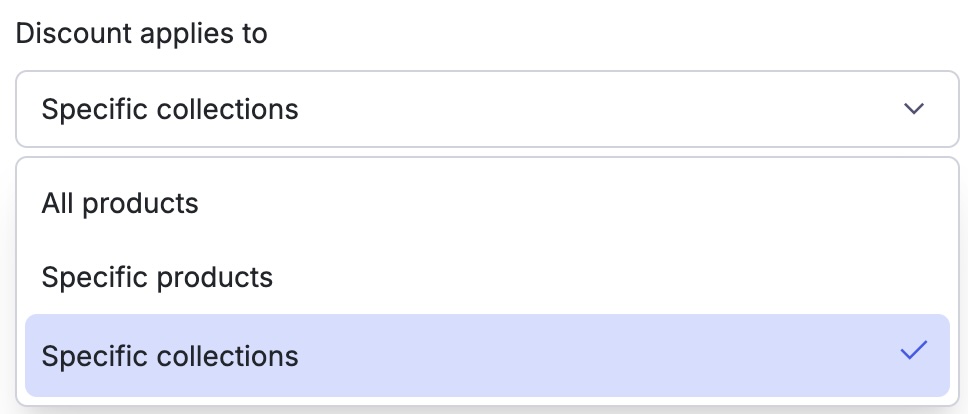
2. For each offer level, locate the **"Discount applies to"** dropdown.
 3. Select one of the following options:
- **All Products** - The discount applies to every item in the cart
- **Specific products** - The discount applies only to selected products
- **Specific collections** - The discount applies only to items within selected collections
4. If you selected "Specific products" or "Specific collections", click **Browse** to open the selection modal.
3. Select one of the following options:
- **All Products** - The discount applies to every item in the cart
- **Specific products** - The discount applies only to selected products
- **Specific collections** - The discount applies only to items within selected collections
4. If you selected "Specific products" or "Specific collections", click **Browse** to open the selection modal.
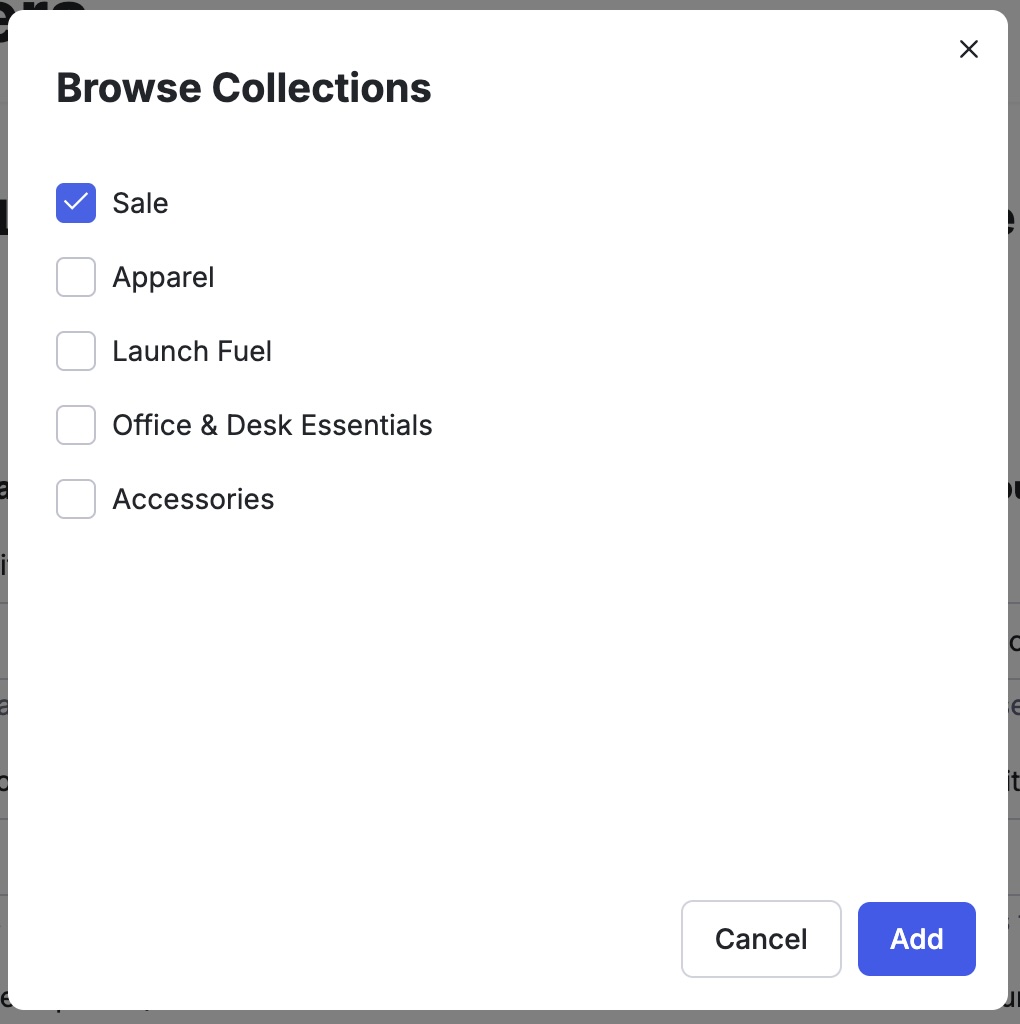 5. Check the boxes next to the products or collections you want included, then save your changes.
## Excluding Items from a Discount
Shopify discount codes don't support "exclude" rules directly (for example, you cannot simply exclude fleece items). Instead, discounts can only be configured to **apply to** specific products or collections.
To effectively exclude certain items from a discount, the recommended approach is to create a collection in Shopify that includes all products eligible for the discount, while ensuring the excluded items are not part of that collection.
### Creating a Smart Collection in Shopify
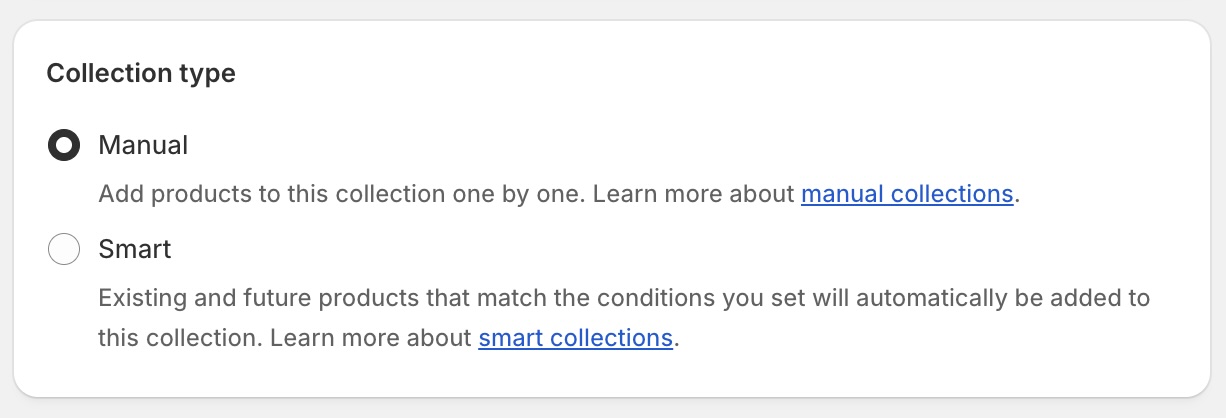
A smart collection automatically includes products based on conditions you define. This is the recommended way to create an exclusion collection.
1. In your Shopify Admin, go to **Products > Collections**.
2. Click **Create collection**.
3. Under **Collection type**, select **Smart**.
5. Check the boxes next to the products or collections you want included, then save your changes.
## Excluding Items from a Discount
Shopify discount codes don't support "exclude" rules directly (for example, you cannot simply exclude fleece items). Instead, discounts can only be configured to **apply to** specific products or collections.
To effectively exclude certain items from a discount, the recommended approach is to create a collection in Shopify that includes all products eligible for the discount, while ensuring the excluded items are not part of that collection.
### Creating a Smart Collection in Shopify
A smart collection automatically includes products based on conditions you define. This is the recommended way to create an exclusion collection.
1. In your Shopify Admin, go to **Products > Collections**.
2. Click **Create collection**.
3. Under **Collection type**, select **Smart**.
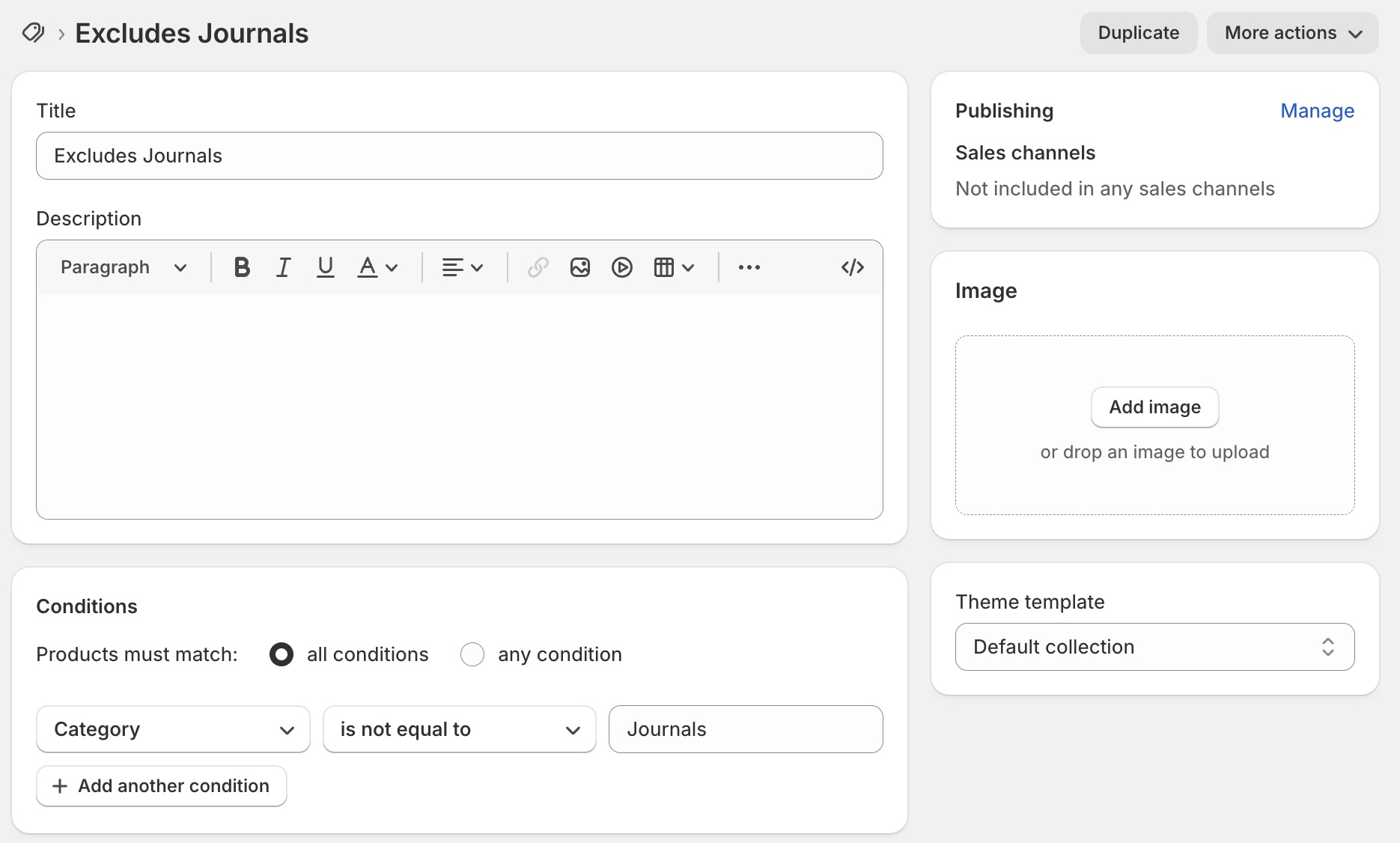
 4. Under **Conditions**, set up rules that include all products except the ones you want to exclude. For example:
- **Product tag** is not equal to `new-launch`
- **Product tag** is not equal to `sale-exclusion`
- **Product type** is not equal to `Gift Cards`
You can combine multiple conditions using "Products must match: **all conditions**" to create precise exclusion rules.
5. Give your collection a descriptive name (e.g., "Discount Eligible Products").
6. Save the collection.
:::note
This collection does not need to be published to any sales channels. It only needs to exist in Shopify for the discount to reference it. You can leave all sales channels unchecked under **Publishing**.
:::
7. Return to your Quikly campaign, and under **"Discount applies to"**, select **Specific collections** and choose your newly created smart collection.
This approach ensures that only eligible products receive the discount while the excluded items remain at full price.
4. Under **Conditions**, set up rules that include all products except the ones you want to exclude. For example:
- **Product tag** is not equal to `new-launch`
- **Product tag** is not equal to `sale-exclusion`
- **Product type** is not equal to `Gift Cards`
You can combine multiple conditions using "Products must match: **all conditions**" to create precise exclusion rules.

5. Give your collection a descriptive name (e.g., "Discount Eligible Products").
6. Save the collection.
:::note
This collection does not need to be published to any sales channels. It only needs to exist in Shopify for the discount to reference it. You can leave all sales channels unchecked under **Publishing**.
:::
7. Return to your Quikly campaign, and under **"Discount applies to"**, select **Specific collections** and choose your newly created smart collection.
This approach ensures that only eligible products receive the discount while the excluded items remain at full price.