---
title: "Show or Hide Components on Specific Products"
description: "Learn how to control which product pages display your Quikly components"
---
You can configure Quikly components to appear on specific product pages or be hidden from certain products. This is useful when you want to target promotions to particular products or exclude components from pages where they don't apply.
This is one of several [component-level visibility controls](/shopify/tutorials/visibility-controls#component-level-controls) available for fine-tuning where your placements appear.
## Accessing Component Settings
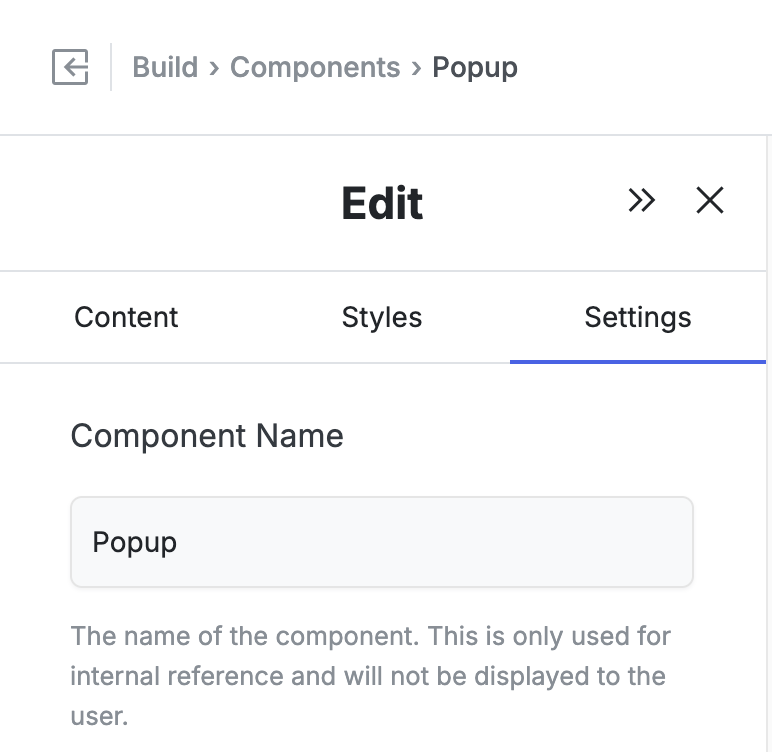
1. Navigate to **Build > Components** in your Quikly campaign.
2. Find the component you want to configure (i.e. popup or banner).
3. Click the **pencil icon** to enter Edit mode.
4. Click the **Settings** tab.
 ## Show Only on Specific Products
Use this setting to display a component only on certain product pages.
In the **"Show only on Specific Products"** field, enter a comma-separated list of product handles or patterns.
> Only show this component on products matching these handles. Supports wildcards (e.g., 'swoop-*'). Comma separated list of product handles or patterns.
**Examples:**
- `blue-widget` - Show only on the "Blue Widget" product page
- `swoop-*` - Show on all products with handles starting with "swoop-"
- `blue-widget, red-widget, green-widget` - Show on these three specific products
## Hide on Specific Products
## Show Only on Specific Products
Use this setting to display a component only on certain product pages.
In the **"Show only on Specific Products"** field, enter a comma-separated list of product handles or patterns.
> Only show this component on products matching these handles. Supports wildcards (e.g., 'swoop-*'). Comma separated list of product handles or patterns.
**Examples:**
- `blue-widget` - Show only on the "Blue Widget" product page
- `swoop-*` - Show on all products with handles starting with "swoop-"
- `blue-widget, red-widget, green-widget` - Show on these three specific products
## Hide on Specific Products
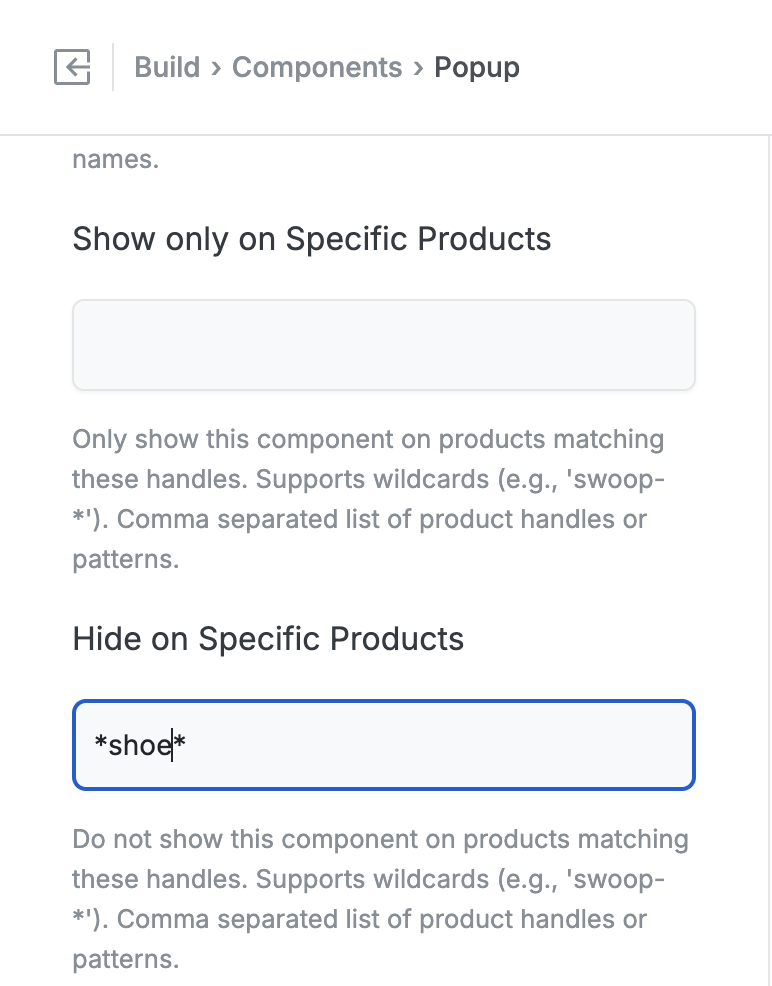 Use this setting to hide a component from certain product pages while showing it everywhere else.
In the **"Hide on Specific Products"** field, enter a comma-separated list of product handles or patterns.
> Do not show this component on products matching these handles. Supports wildcards (e.g., 'swoop-*'). Comma separated list of product handles or patterns.
**Examples:**
- `gift-card` - Hide on the gift card product page
- `bundle-*` - Hide on all bundle products
- `clearance-item-1, clearance-item-2` - Hide on specific clearance items
## Finding Product Handles
A product handle is the URL-friendly version of your product title. You can find it in:
1. **Shopify Admin**: Go to **Products**, click on a product, scroll down to **Search engine listing**, and look at the URL handle.
2. **Product URL**: The handle is the last part of your product URL. For example, in `yourstore.com/products/blue-widget`, the handle is `blue-widget`.
## Using Wildcards
Wildcards (`*`) match any characters, making it easy to target groups of products:
| Pattern | Matches |
|---------|---------|
| `summer-*` | `summer-dress`, `summer-hat`, `summer-sale-item` |
| `*-bundle` | `starter-bundle`, `deluxe-bundle`, `gift-bundle` |
| `*sale*` | `summer-sale`, `sale-item`, `clearance-sale-2024` |
## Related Tutorials
- [Campaign Visibility Controls](/shopify/tutorials/visibility-controls) - All visibility options including URL rules, template filtering, and more
- [Configuring Offers](/shopify/tutorials/offer-configuration) - Control which products discounts apply to
- [How to Position the Banner Component](/shopify/tutorials/position-banner)
Use this setting to hide a component from certain product pages while showing it everywhere else.
In the **"Hide on Specific Products"** field, enter a comma-separated list of product handles or patterns.
> Do not show this component on products matching these handles. Supports wildcards (e.g., 'swoop-*'). Comma separated list of product handles or patterns.
**Examples:**
- `gift-card` - Hide on the gift card product page
- `bundle-*` - Hide on all bundle products
- `clearance-item-1, clearance-item-2` - Hide on specific clearance items
## Finding Product Handles
A product handle is the URL-friendly version of your product title. You can find it in:
1. **Shopify Admin**: Go to **Products**, click on a product, scroll down to **Search engine listing**, and look at the URL handle.
2. **Product URL**: The handle is the last part of your product URL. For example, in `yourstore.com/products/blue-widget`, the handle is `blue-widget`.
## Using Wildcards
Wildcards (`*`) match any characters, making it easy to target groups of products:
| Pattern | Matches |
|---------|---------|
| `summer-*` | `summer-dress`, `summer-hat`, `summer-sale-item` |
| `*-bundle` | `starter-bundle`, `deluxe-bundle`, `gift-bundle` |
| `*sale*` | `summer-sale`, `sale-item`, `clearance-sale-2024` |
## Related Tutorials
- [Campaign Visibility Controls](/shopify/tutorials/visibility-controls) - All visibility options including URL rules, template filtering, and more
- [Configuring Offers](/shopify/tutorials/offer-configuration) - Control which products discounts apply to
- [How to Position the Banner Component](/shopify/tutorials/position-banner)