
Quikly Discounts in Shopify
Quikly offers run on Shopify’s own discount system. Each tier in your campaign becomes its own standard Shopify discount code, which Quikly creates and keeps up to date from your campaign’s settings. You’ll see these discounts in your Shopify admin under Discounts, alongside every other discount in your store, and their orders show up in Shopify’s sales-by-discount reports.
You don’t need to build anything in Shopify. Set up the offer in Quikly, and Quikly handles the discount.
Each Tier Is Its Own Discount
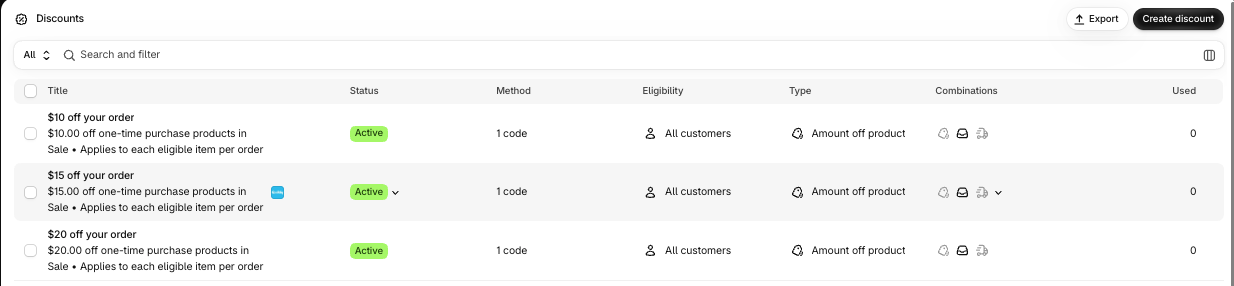
Section titled “Each Tier Is Its Own Discount”A campaign with three tiers creates three discount codes in Shopify, one per tier. For example, a campaign offering $20, $15 and $10 off appears in the Discounts list as three separate discounts:
Recognizing a Quikly Discount
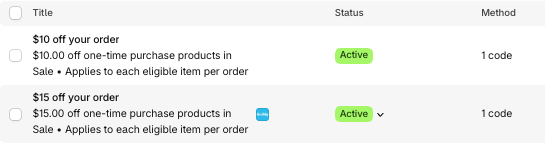
Section titled “Recognizing a Quikly Discount”Discount titles come from the offer title, not the campaign name, so offers from different campaigns can look alike. Two ways to tell a discount came from Quikly, whatever its code is named:
- In the Discounts list, hover over a discount to see a small Quikly icon.
- On the discount page, the code section reads “created by Quikly App.”

The Discounts List
Section titled “The Discounts List”| Column | What it shows for a Quikly offer |
|---|---|
| Title | The offer title, e.g. “$20 off your order” |
| Status | Active, Scheduled or Expired, based on the campaign’s timing |
| Method | ”1 code”: a code the shopper enters, not an automatic discount |
| Eligibility | All customers (see Eligibility and Audience Targeting) |
| Type | Amount off order, Amount off product, Buy X get Y, or Free shipping |
| Combinations | Icons for product, order and shipping discounts. A dimmed icon means the offer won’t combine with that type. |
| Used | How many orders used the code |
How Each Setting Maps to Shopify
Section titled “How Each Setting Maps to Shopify”| In Quikly | In Shopify | Notes |
|---|---|---|
| Type: Fixed amount or Percentage | Discount value: Fixed amount or Percentage | |
| Type: Free shipping | Discount type: Free shipping | |
| Discount value | Discount value amount or % | |
| Discount applies to | Applies to | All products, or specific products or collections |
| Require minimum purchase | Minimum purchase requirements | |
| Apply discount to each item (checked) | Only apply discount once per order (unchecked) | Same setting, opposite wording |
| Purchase type | Purchase type | One-time, subscription, or both |
| Recurring payments for subscriptions | Recurring payments for subscriptions | Same three options in both |
| Require specific product(s) in cart | Discount type changes to Buy X get Y | The only setting that changes the discount type |
| Combinations | Combinations | See Combining Offers with Other Discounts |
| Quantity | Maximum discount uses | Quantity + 5. See Usage limits. |
| Discount code | Code (read-only) | Must be new to the store |
| Offer title | Discount title | |
| Short title, subtitle, destination URL, terms and conditions | Not sent | Shown only in the campaign, if its design includes them |
| Campaign start and end | Schedule | See Timing |
| Audience Targeting | Not sent | Eligibility is always All customers |
For details on each Quikly setting, see Configuring Offers.
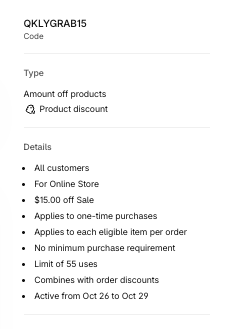
Shopify’s discount page also sums up every setting in plain language in its sidebar:
Usage Limits
Section titled “Usage Limits”A tier’s quantity appears in Shopify as Maximum discount uses, plus a buffer of 5. A tier with a quantity of 50 shows a limit of 55 uses:
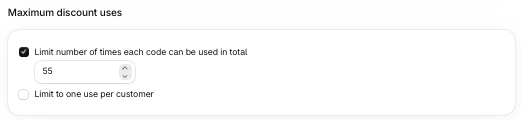
The buffer is there because Shopify’s count and Quikly’s count can drift slightly. Quikly enforces the real limit of 50, and the limit and the campaign’s count hold even if the code is used outside the campaign.
Eligibility and Audience Targeting
Section titled “Eligibility and Audience Targeting”Every Quikly discount shows Eligibility: All customers in Shopify.

That’s expected. Quikly controls who sees the campaign through its visibility settings (activation links, URL rules, visibility percentage, visitor limits, countries and more), and those settings stay in Quikly. Shopify’s Eligibility controls who can redeem the code at checkout, and Quikly always leaves it open to all customers.
See Campaign Visibility Controls for how to target a campaign.
Timing
Section titled “Timing”The campaign’s start and end set the discount’s schedule in Shopify. Two settings in Edit Timing shift that schedule:
| In Quikly | In Shopify |
|---|---|
| Campaign start | Schedule start |
| Activate discount codes before campaign launches | Schedule starts when the timing is saved |
| Campaign end: specific date | Schedule end |
| Campaign end: when all offers are claimed | No end date |
| Discount code grace period | Added to the schedule end |
For example, a campaign running Oct 28 from 10:00 AM to 11:59 PM, saved on Oct 27 at 11:03 AM with early activation on and a 30-minute grace period, has this schedule in Shopify:

See Test Offer Codes Before Launch for both settings.
When Campaigns and Tiers Change
Section titled “When Campaigns and Tiers Change”| In Quikly | In Shopify |
|---|---|
| The campaign ends or reaches its end date (even if it was never published) | The discount shows Expired |
| A tier is deleted | The discount is removed |
| A tier’s code is changed | The new code replaces the old one, and the old code stops working |
Editing a Quikly Discount in Shopify
Section titled “Editing a Quikly Discount in Shopify”Shopify doesn’t notify Quikly when a discount is edited in Shopify. A Shopify edit stays in effect until the campaign is next updated in Quikly, and then Quikly’s settings overwrite it without warning.
These count as a Quikly update:
- Saving an offer on the Offers tab
- Changing Edit Timing (this resends every offer)
- Changing a quantity on a live campaign
Publishing doesn’t count. A live campaign that isn’t updated keeps the Shopify edit, which leaves it out of step with what the campaign shows.
| If you change this in Shopify | What happens |
|---|---|
| Type (e.g. amount off to percentage off) | The campaign says “$20 off,” but checkout applies the percentage. |
| Discount value | The campaign and checkout show different amounts. |
| Combinations | Applies until the next Quikly update, then reverts. |
| Eligibility (e.g. a customer segment) | Enforced at checkout, so shoppers your campaign targets can be rejected. Resets to All customers on the next Quikly update. |
| Minimum purchase | Applies until the next Quikly update, then reverts. |
| Start or end date | Replaced by the campaign’s dates on the next Quikly update. |
| Deactivate | The campaign shows a code that checkout rejects. |
| Delete | The campaign shows a code that no longer exists, and deleting that tier in Quikly may then fail. |
| Title | Harmless. It’s only shown in the admin, and resets on the next Quikly update. |
The discount code itself is read-only in Shopify. To change it, edit the tier in Quikly.
Check Whether an Edit Was Overwritten
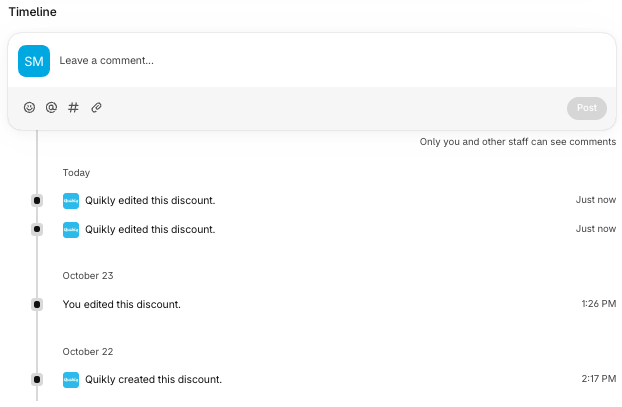
Section titled “Check Whether an Edit Was Overwritten”Scroll to Timeline at the bottom of the discount page in Shopify:
- “You edited this discount” is a change made in Shopify.
- “Quikly edited this discount” is an update from Quikly.
A Shopify edit followed by a Quikly edit means the Shopify change was overwritten.
Related Tutorials
Section titled “Related Tutorials”- Configuring Offers — Every offer setting in Quikly
- Combining Offers with Other Discounts — Stacking and affiliate codes
- Test Offer Codes Before Launch — Early activation and the grace period
- Campaign Visibility Controls — Control who sees the campaign
- Identifying Quikly Orders — How Quikly attributes orders to a campaign