
Managing a Live Campaign
Once a campaign is published, you can still manage it without taking it down — pause it from your storefront, or adjust tier quantities while it runs. This tutorial covers both.
Pause a Published Campaign
Section titled “Pause a Published Campaign”If you no longer want a campaign active on your site, you don’t need to delete it — you can pause it. Pausing hides the campaign from visitors and returns it to draft mode, and you can re-publish it at any time to make it live again.
-
Open the campaign you want to take down to its campaign detail page.
-
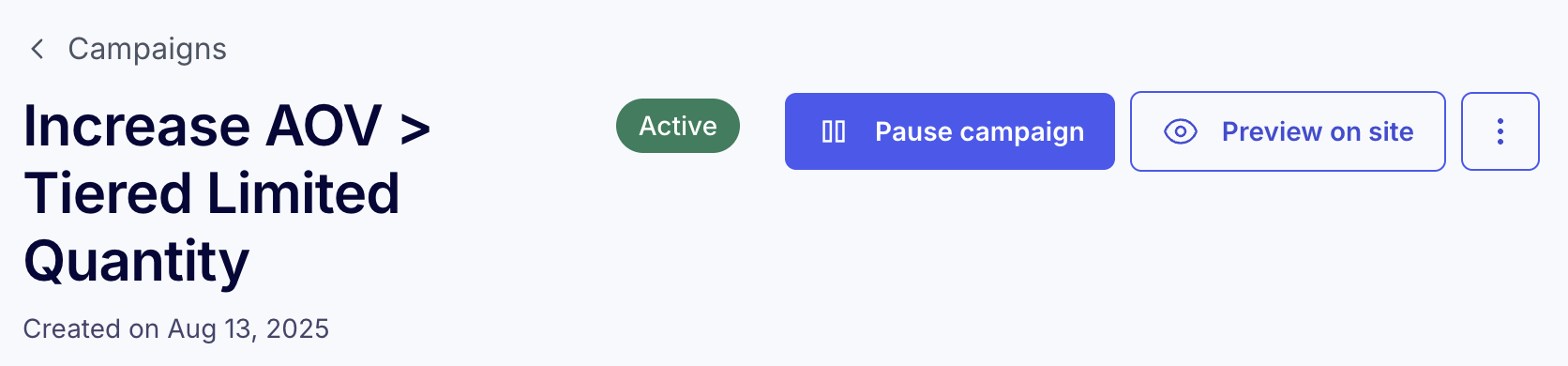
Click Pause campaign in the header. The status badge changes from Active, the campaign stops showing to visitors, and it returns to draft.
When you’re ready to bring it back, return to the same page and re-publish it — the campaign goes live again with its existing settings.
Change Tier Quantities While Live
Section titled “Change Tier Quantities While Live”You can change the quantity available for an offer that hasn’t been fully claimed, but we don’t recommend it — keeping quantities fixed protects the authenticity of the promotion. If you do need to adjust a quantity on a running campaign:
-
From the campaign overview page, next to Offer configuration, click View All.
-
Next to the offer level you want to modify, click it to expand the details.
-
Update the quantity, then click Save Offer.
What happens when you change a live quantity
Section titled “What happens when you change a live quantity”Because customers may have already claimed, Quikly shows a confirmation prompt describing the impact, and the change isn’t applied until you acknowledge it:
- Increasing the quantity creates new offers and adds them to the claim queue, so they become available right away.
- Decreasing the quantity removes only unclaimed offers. Customers who have already claimed keep their offer — you can’t reduce a tier below the number that has already been claimed.
Related Tutorials
Section titled “Related Tutorials”- How to Duplicate a Campaign
- Campaign Visibility Controls — Hide a live campaign on specific pages without pausing it entirely
- Configuring Offers