
Add an Image to the Popup
You can add an image to your popup — or any component — from the Design Editor, then control how it sizes, crops, and aligns.
Add the Image Content
Section titled “Add the Image Content”-
In the Design Editor, click Components, then click the component you want to modify. For this example, we’ll use the Popup.
-
Click the pencil icon to edit.
-
Add an Image content block one of two ways:
- Click Add Content and choose Image from the content types, or
- Click an existing image in the content stack to edit it.

- In the Image content block, click Select image.
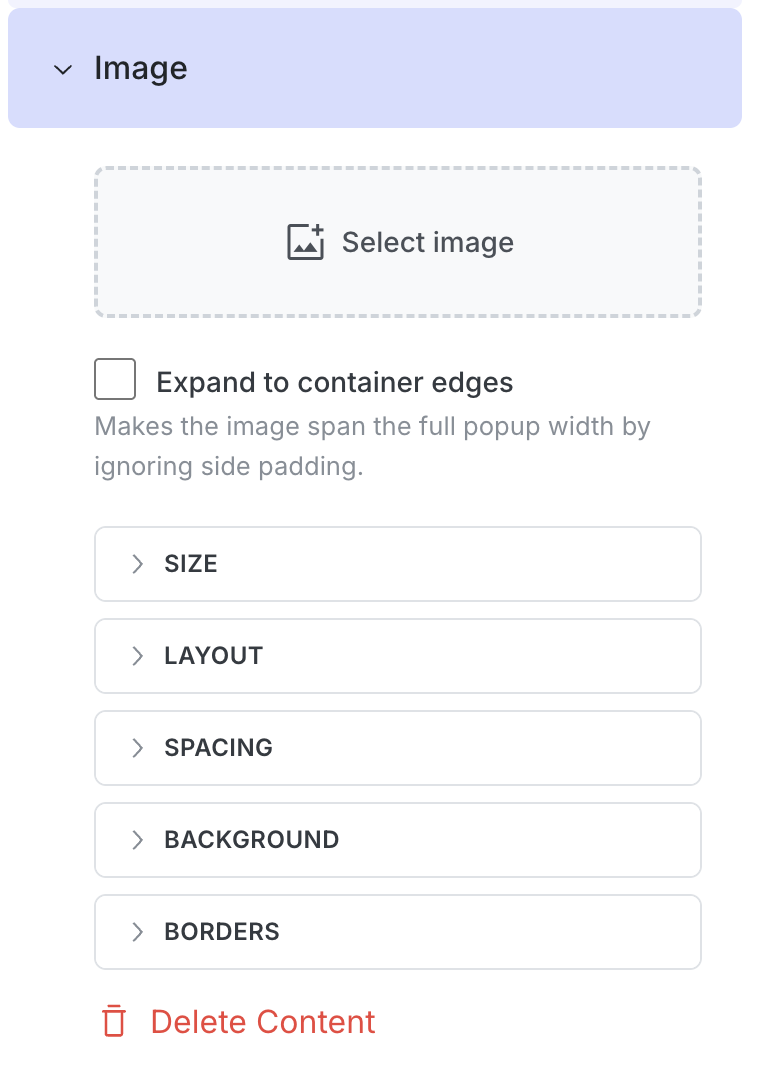
- The Choose from Library window opens. Pick an existing image from your library, or click Upload new to add one to your account.
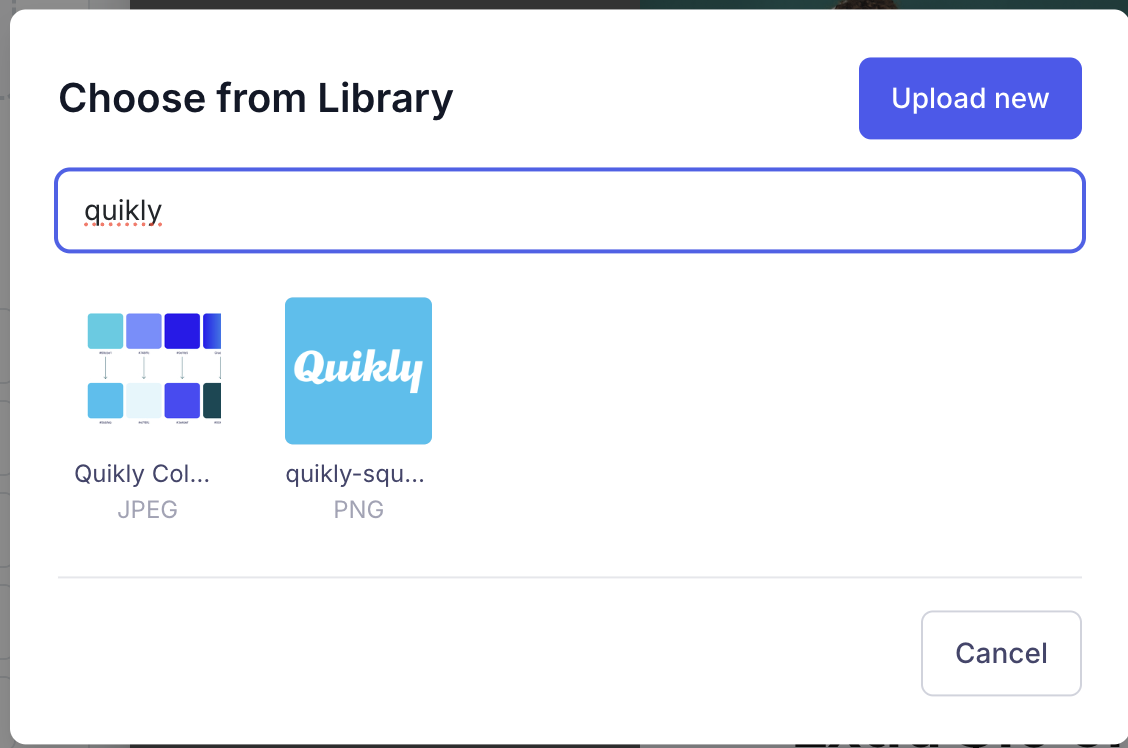
Adjust How the Image Displays
Section titled “Adjust How the Image Displays”Once an image is selected, the Image block exposes controls for fit and styling:
- Expand to container edges — Makes the image span the full popup width by ignoring the side padding. (Leave it off to keep the image inset within the popup’s padding.)
- Size — Set the image’s width and height. You can also set an aspect ratio to crop the image to a fixed shape; when an aspect ratio is set, the image fills the frame (cover) and is centered by default, with controls to change how it’s fitted and positioned within the crop.
- Layout — Align the image left, center, or right within the popup.
- Borders — Round the corners (border radius) and add a border color.
- Background and Spacing — Set a background color behind the image, and adjust margins and padding around it.
Click Save when you’re done, and preview the popup to confirm the image looks right on both desktop and mobile.
Image Specifications
Section titled “Image Specifications”When uploading a new image to your library:
- File type: Any image format. The uploader shows PNG, JPG, and GIF, and also accepts other image formats such as SVG and WebP.
- Maximum file size: 10 MB.
There’s no fixed dimension requirement, but for crisp results upload an image at least as large as the space it will fill in the popup, and use the Size and aspect-ratio controls above to fit it. Smaller, web-optimized files also keep the popup loading fast.